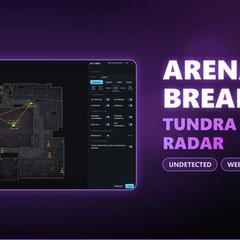
Installing Arena Breakout Infinite Tundra Web Radar
Tundra has no in-game menu: the map and all settings open in a browser. The main thing is to prepare the system correctly and run the radar from a flash drive.
Tick off steps with “Done” — progress is saved in this browser.
1System requirements
- OS
- Windows 10 or 11, x64, builds up to 25H2 inclusive
- CPU
- Intel or AMD
- GPU
- NVIDIA or AMD
- Window mode
- Any
- Game version
- Arena Breakout Launcher or Steam
- Spoofer included
- No
2Preparation
0 of 2Done once. Detailed steps for each item are on the Windows preparation page.
3Launch
0 of 7- 1Copy tundra_radar.exe to a USB flash drive and run it from there, not from the archive.
- 2Run the file from the flash drive as administrator. If you use a spoofer, turn it on only after the radar — otherwise the key binds to spoofed hardware.
- 3At the top of the loader choose the server: RU for Russia and CIS, EU for Ukraine, Europe and other countries. Don’t turn on a VPN — with the RU server it breaks the connection.
- 4Enter the TUNDRA-XXXXX-XXXXX-XXXXX key from your order and wait for the Ready status. The window closes by itself and opens a tab with the map.
- 5Unplug the flash drive and only then launch Arena Breakout: Infinite. Enter a raid as usual.
- 6The map fills in during the raid — it is empty in the menu and on the loading screen. Keep the tab open: it updates by itself for the next raid.
- 7It is most convenient to open the radar on a phone or second monitor — that way the map won’t end up in a recording or stream.
4Troubleshooting
The loader says Defender is on
Defender turned itself back on after a restart. Turn it off completely, starting with Tamper Protection — step by step.
The key is not accepted
Copy the key from My keys in full, without spaces. Check the Windows clock (how to sync it). If the key is already activated on another PC, contact support to reset the binding.
The game crashes
Close extra overlays and recording software, update Visual C++ and DirectX, restart your PC and launch everything again strictly step by step. If it repeats, contact support with the crash time.
Stopped working after a game update
Check the product status on the site: after a patch the program needs time to update. Once the status is Working again, fully restart the loader.
5FAQ
Where do I get the key and the download link?
Everything arrives right after payment: the key, the loader download button and this guide are in My keys in your dashboard.
Is there a built-in spoofer?
No. Usually it isn’t needed — an HWID spoofer is only required if your hardware has already been banned.
What do the map icons mean?
Circles are players: you and allies are green, each enemy group has its own color. Diamonds are AI, colored by type: PMC, regular bot, boss, guard, scav.
How do I see a trader’s goods?
The radar has a Trader window with the full assortment. Hover over a box to see possible items with rarity and price.
Where can I get help?
Contact our Telegram support — @dmalabs. News, status updates and the buyers’ chat are in the @dmalabsRU channel.